Mastering Dext
Welcome to our guide on mastering Dext! If you're looking to breeze through your financial documentation process and save yourself some precious time, you're in the right place.
Submitting your
Docs to Dext ––
Each method below links to a step-by-step guide further down this page —click through for detailed instructions and tips.
If you need support understanding source documents, or learning what info the CRA requires, head over to our Demystifying Source Docs post.
Dext’s Mobile App
Email-In directly from your inbox
Dext’s Browser Extension for Chrome + Web Browser
Snap, Submit, Done
To save you time, you can skip updating fields in Dext as you upload your items. Our team reviews every submission and takes care of coding and accuracy before anything is finalized in your books.
The best thing you can do is simply upload clear and complete documents—we’ll handle the rest!

Method: Dext’s Mobile App
Suggested Use: On-the-go snaps of physical source docs

Tips + Tricks for using the Mobile App
Make sure the entire document is visible within the frame.
Be sure to submit a single document for each transaction and avoid uploading multiple items in one photo to maintain clarity.
Source Docs to support purchases should be uploaded to your Costs inbox; there is an option to toggle between both Costs and Sales.
There are certain cases where we need you to jot a note in the Description box → for example, when an item is paid with personal funds.
Ensure the image is clear and legible → this is not the time for mood lighting!
Method: Email Forwarding
Suggested Use: Automated bill forwarding and speedy forwarding from your inbox

You can find your custom email-in addresses for your account by logging into Dext and going to My Profile → My Details → Look under the heading: Extract By Email.
Tips + Tricks:
Pay attention to the recommended file type; submittable file types include: JPG, PNG, or PDF
We recommend that you add your Dext email to all online suppliers that send source docs via email → ask them to send copies of all docs there for all future transactions
You can also set up inbox filters to direct specific docs directly to Dext. Check out directions for Gmail here!
You will notice specific email addresses for single or multiple submissions — as well as Costs or Sales.
Single: this address is for submitting an email with a single attachment.
Multiple: this address is for submitting an email with multiple source docs within one PDFs. Note: this will treat each page as a single transaction.

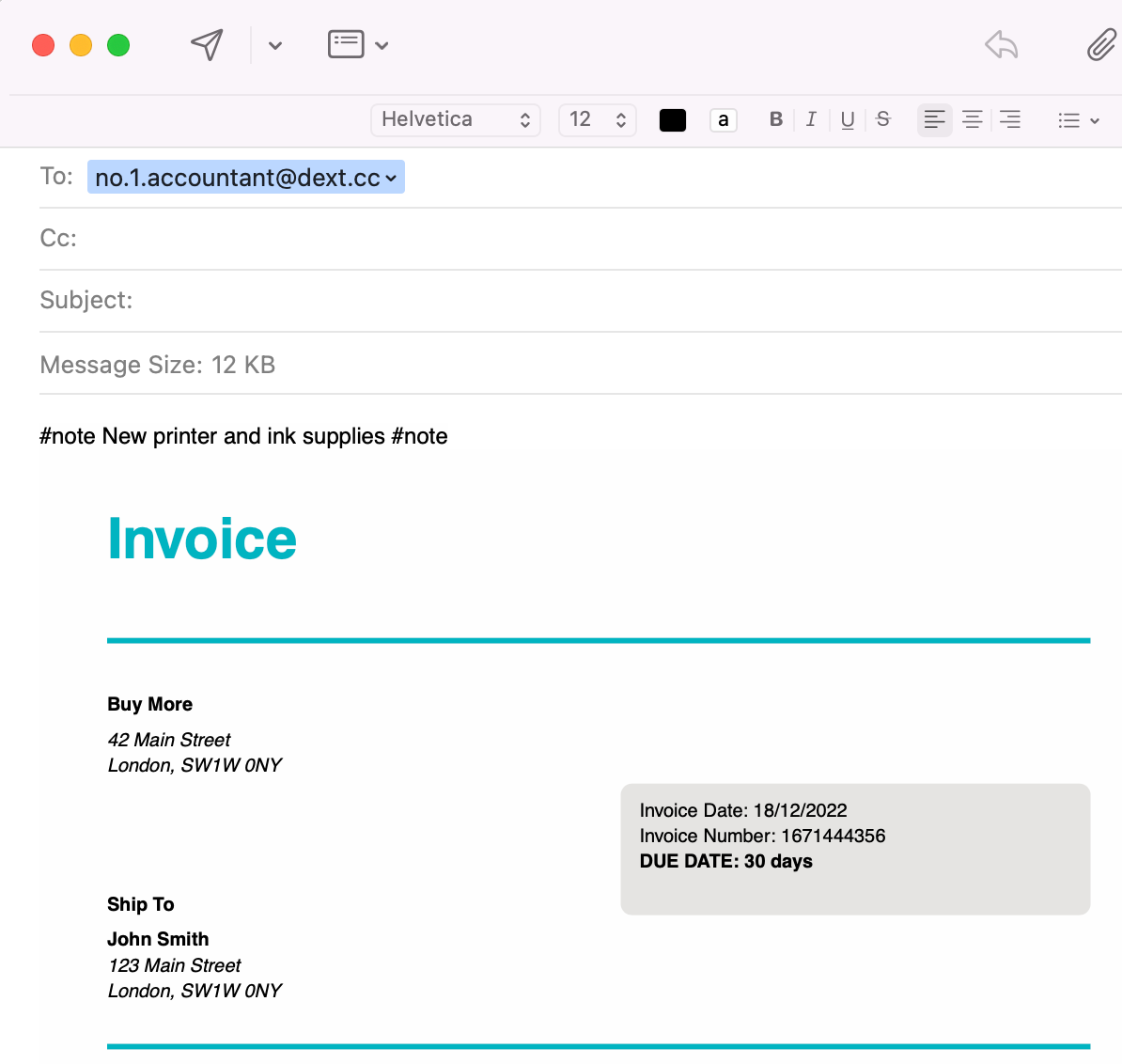
If you need to add a note in the Description box of Dext for this email-in submission → sandwich the note between #notes
i.e. #note paid with Joanie’s personal funds #note
Method: Dextension Browser Extension + Website
Suggested Use: Desktop Chrome extension, ideal for both quick in-the-moment uploads while working on your computer as well as bulk uploads.

General Tips & Tricks:

Tips + Tricks:
To install Dextension, go to the Chrome web store and click on the button Add to Chrome — then pin the extension logo.
You can drag and drop files (JPF, PDFs, and screenshots are all suitable options) from any page in your browser or right-click on files opened in your browser and choose Upload to Dext
Then you can choose one of two options —Cost or Sales— as it pops up.
Costs: this is a dedicated space for accounts payable and business expenses. TLDR; for money going out!
Sales: this is a dedicated space for invoices and financial documents that your business issues to its customers for payments. TLDR; for money coming in!
Meals & Purchases with Tips
If you add a tip to your purchase, make sure you upload both the itemized bill as well as the payment receipt slip that shows the tip total. Photograph both slips side by side and upload as a single file.
When to add notes to your Uploads:
When more context is needed:
If the item purchased is unclear, or atypical for standard business operations → let us know what you purchased with a brief note:
“Flowers - purchased for client gift.”
“Dog treats - purchased to give away in store.”
If you used alternative funds to pay for the purchase:
If you used cash, a gift card, or a bank/credit card account that we don’t have access to → let us know how the items was paid for in the Description field.
“Paid with Joanie’s personal funds.”
“Paid with petty cash.”
Note: When using the Browser or Dextension you cannot add a note to the Description box — email forwarding and the app are more ideal submission methods here.